
Disclosure: This post contains affiliate links. If you buy something through them, I may earn a small commission – at zero extra cost to you. I only recommend stuff I actually believe in.
Okay, real talk. 👀
You open Spotify, check your profile, see your follower count went up by like 3… and now you’re spiraling trying to figure out who’s been lurking on your page.
Was it your ex? A new fan? Your coworker who pretends not to care about music?
We’ve all been there.
So let’s just cut straight to it – does Spotify actually tell you who viewed your profile? And if not, what can you find out?
This guide covers everything. Step by step. No fluff.
Does Spotify Tell You Who Viewed Your Profile?


Short answer? Nope. Spotify does not show you who viewed your profile.
There are no notifications, no “profile visitors” section, no sneaky little list of usernames hiding somewhere in the settings.
Spotify keeps that stuff locked up tight – and honestly, it’s on purpose. The platform is built around music discovery, not social surveillance. They don’t want it turning into a stalk-fest like some other apps we know.
So if you’ve been digging around trying to find that feature… it doesn’t exist. At least not officially.
But here’s the good news – there are some things you can see, and a few clever workarounds that get you surprisingly close.
Let’s get into it.
How To See Who Viewed Your Spotify Profile
Alright, so here’s the closest thing Spotify gives you.
The only real way to identify specific people who’ve interacted with your profile is through your Followers list – but only if they actually followed you after visiting.
Think of it this way: if someone came to your profile, liked what they saw, and hit follow – you can find them. If they ghosted without following, they’re gone forever. Tragic, but that’s the deal.
Here’s how to check your followers:
On Desktop or Spotify Web:
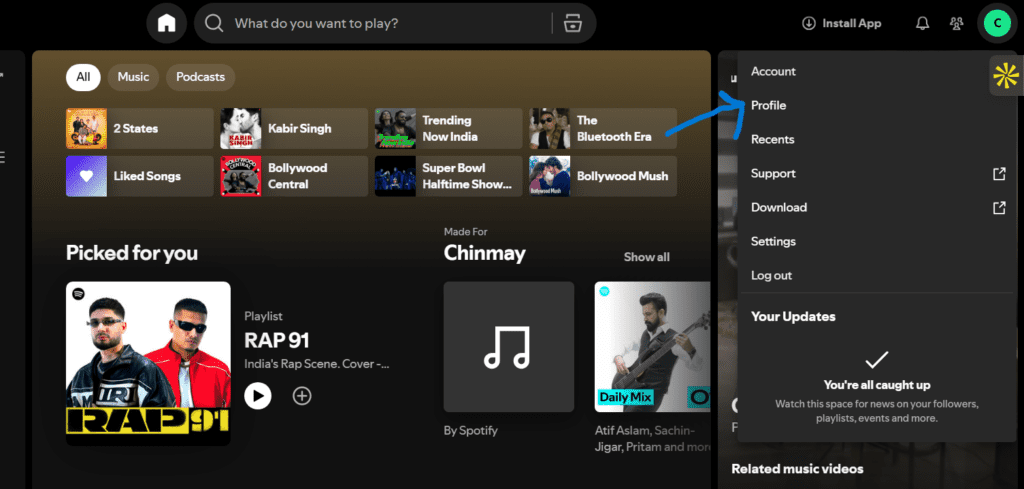
- Click your profile icon in the top right corner
- Click Profile

- Under your username, click Followers

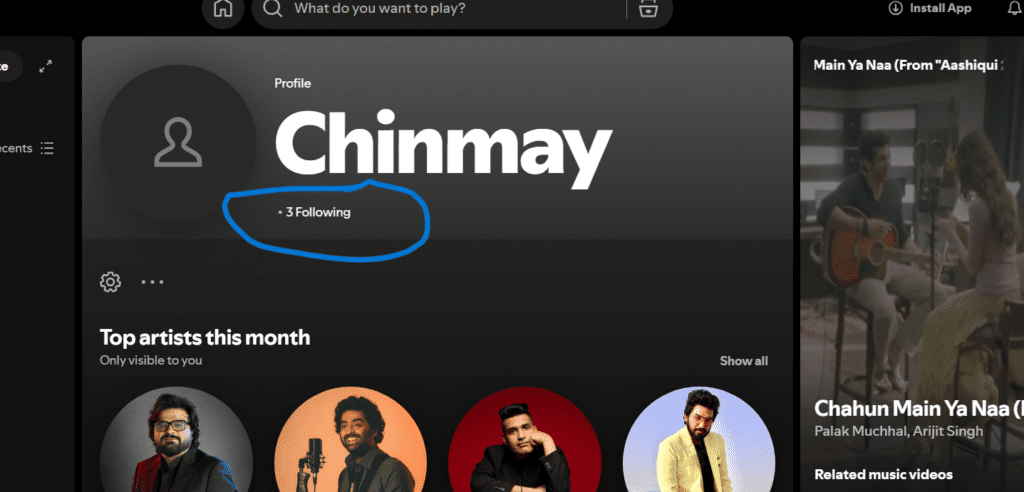
- You’ll see a full list of everyone following you
On Mobile:
- Tap your profile icon in the top left
- Tap View Profile under your username
- Tap Followers
- From here, you can tap the three dots next to anyone to remove or block them – or just tap their name to snoop back 😄
That’s your best bet for identifying actual visitors.
Want more people showing up in that list in the first place? A bigger follower count also makes your profile look way more legit to new visitors. You can buy Spotify followers to kickstart that growth and make your profile worth landing on.
How To Make Playlists Private
So maybe you’re on the other side of this – you don’t want other people snooping on your playlists.
(No judgment. We all have that one playlist full of guilty pleasure songs we’d rather not explain.)
By default, Spotify makes all your playlists public. Which means anyone can stumble across your 3am sad songs playlist. Yikes.
Here’s how to lock it down:

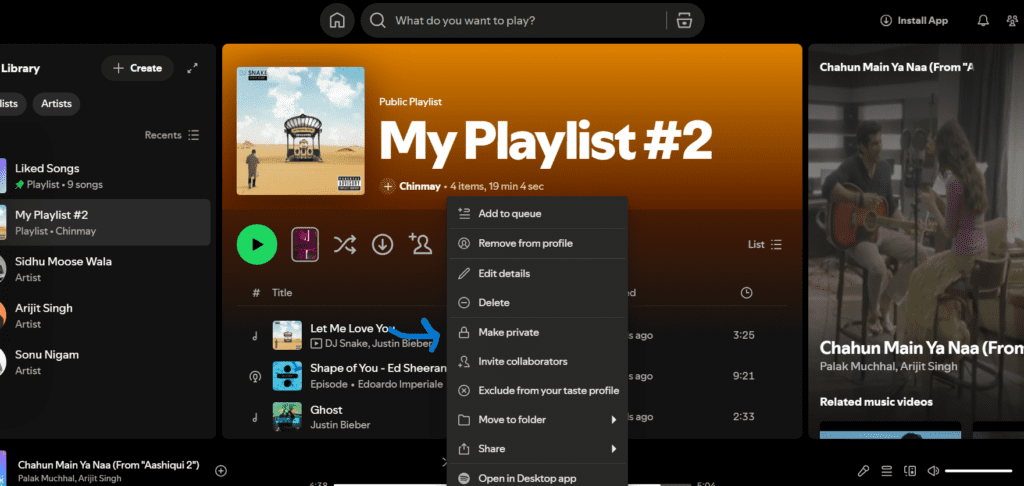
- Open the playlist you want to hide
- Tap or click the three dots (⋯) under the playlist name
- Select Make Private (it’ll have a little lock icon next to it)
Done. That playlist is now invisible to everyone but you.
Quick note: making it private doesn’t delete any likes it already has. Your stats stay intact – it just disappears from your public profile.
On the flip side, if you have a public playlist you’re proud of and want it to actually gain traction – more followers on it signals popularity to the algorithm. Buying Spotify playlist followers is a solid way to give a new playlist that initial push it needs to get discovered organically.
How To Make Your Profile Private
Here’s the honest truth – you can’t make your entire Spotify profile fully private.
But you can control a whole lot of what people see when they land on it.
On Desktop, go to Settings – Social, and you can toggle:
- Publish my new playlists on my profile (on/off)
- Share my listening activity on Spotify (on/off)
- Show my recently played artists on my public profile (on/off)
- Show my follower and following lists on my public profile (on/off)
Turn off whatever you’re not comfortable with. Easy.
Want to go fully incognito for a session? Use Private Session mode.
It’s like Spotify’s version of Incognito mode. While it’s on, your friends won’t see what you’re listening to in real time, and it won’t affect your recommendations or listening history publicly.
To turn it on:
Mobile: Profile icon – Settings & Privacy – Privacy and Social – Toggle Private Session ON
Desktop: Click your profile icon – Click Private Session
You’ll see a little blue lock icon pop up when it’s active. 🔒
One heads up – private sessions expire after 6 hours. After that, you’re back to broadcasting your music taste to the world. And it’s not available on the browser version of Spotify, only the app.
🎵 Still on Spotify Free? You’re Missing Half the Experience.
Private sessions, offline downloads, zero ads, unlimited skips, higher audio quality – Spotify Premium gives you full control over how you listen. If you’re spending this much time thinking about your Spotify profile, you might as well enjoy it without ads interrupting every third song. 👉 Try Spotify Premium Here
How To See Spotify Engagement
Okay so you can’t see who specifically is engaging with your stuff – but you can see the numbers. And honestly? Numbers tell a pretty solid story.
Here’s what regular users can check:
Follower Count – Go to your profile and you’ll see how many people follow you. You can also see some of the actual profiles following you. This is your closest window into who’s paying attention. If that number feels embarrassingly low, buying Spotify followers builds the social proof that convinces real people to hit follow too.
Playlist Likes – Each public playlist shows the number of likes. You can’t see the names, but you can see if a playlist is popping off or just collecting dust.
Playlist Plays – Track how often your playlists are being listened to. More plays = more algorithmic love. If you want to give your tracks a serious head start, buying Spotify plays can push them higher in search results and get them in front of real new listeners faster.
Saves – This one’s huge and most people sleep on it. When someone saves your track, Spotify treats it as one of the strongest signals that your song is worth pushing to more people. You can buy Spotify saves to give your releases that early momentum boost right when it matters most – especially in the first 7 days after a drop.
If you’re an artist, you get way more juice. Spotify for Artists gives you access to:
- Total streams and listener counts
- Listener demographics (age, gender, location)
- Which playlists your songs are landing on
- Where your listeners are discovering you from
It’s free, it’s powerful, and if you’re not using it – you’re leaving insights on the table. Claim your artist profile at artists.spotify.com.
One of the most important numbers inside Spotify for Artists is your monthly listeners count. It directly affects how the algorithm decides whether to push your music or bury it. If you’re just starting out and that number is sitting at zero, buying Spotify monthly listeners can help you break through that dead zone and start showing up on people’s radars for real.
How To View Your Friend’s Listening Activity
This is one of Spotify’s most underrated features and barely anyone uses it.
On the desktop app, there’s a sidebar that shows you exactly what your friends are listening to in real time. It’s actually super fun – like a live music feed of your social circle.
Here’s how to turn it on:
- Click your profile icon (top right)
- Go to Settings
- Scroll down to Display
- Toggle ON “See what your friends are playing”
After that, you’ll see a Friend Activity panel on the right side of the desktop app. It shows the song, artist, and how long ago they listened. You can even click on what they’re playing to jump straight into it.
Want to turn off YOUR listening activity so friends can’t see what you’re playing?
On Mobile: Profile – Settings & Privacy – Privacy and Social – Toggle Listening Activity OFF
On Desktop: Settings – Social – Toggle “Share my listening activity on Spotify” OFF
Simple as that. Total control.
Do Third Party Tracking Apps Work?
Okay, this one’s important – and we’re gonna be straight with you.
No. They don’t work. And they’re probably trying to scam you.
Spotify’s API (the system that lets outside apps connect to Spotify) does not give third-party tools access to private profile view data. It literally doesn’t exist in the system.
So when you see an app or website claiming it can show you “who’s been stalking your Spotify profile”… run. 🚩
These apps are almost always:
- Collecting your login credentials to sell or misuse
- Phishing scams designed to hijack your account
- Just straight-up fake with zero actual data behind them
Spotify Premium doesn’t unlock this feature either, by the way. Premium is about audio quality and app experience – not social analytics.
What Premium does give you is ad-free listening, offline downloads, better sound quality, and unlimited skips. If you haven’t upgraded yet, Spotify Premium is genuinely worth it – just not for the reason these scammy apps are claiming.
Bottom line: if an app asks for your Spotify login to “reveal profile visitors,” close the tab immediately. Your account security is not worth the curiosity.
The Bottom Line
So here’s the full picture:
Spotify doesn’t show you who viewed your profile – and that’s by design. The platform is built for music, not social media surveillance.
But you’re not totally in the dark either. You can see your followers, track playlist engagement, control exactly what others see on your profile, and (if you’re an artist) dig into some seriously detailed analytics.
Use the tools Spotify actually gives you. They’re better than most people realize.
And if you’re an artist trying to grow? Stop waiting for some magic viewer list and start focusing on making music that makes people want to follow you in the first place.
The smartest move is to stack your growth signals early – get more plays, rack up saves, grow your monthly listeners – and let the algorithm do the heavy lifting.
And if you’re still on the free plan, do yourself a favour – upgrade to Spotify Premium and actually enjoy the platform you’re spending all this time on. No ads. No interruptions. Just music. 🎶
Got questions? Drop them in the comments below. And if this helped, share it with a friend who’s been wondering the same thing!